Convert any PDF into an editable Word document while preserving formatting, images, and tables. Follow this simple step-by-step guide for fast and accurate PDF to Word conversion
PDFs are one of the most widely used file formats for sharing documents. They preserve formatting across devices, making them perfect for contracts, resumes, reports, invoices, and presentations. However, when it's time to make changes, PDFs can quickly become frustrating. Editing text, updating images, or modifying layouts often requires specialized tools.
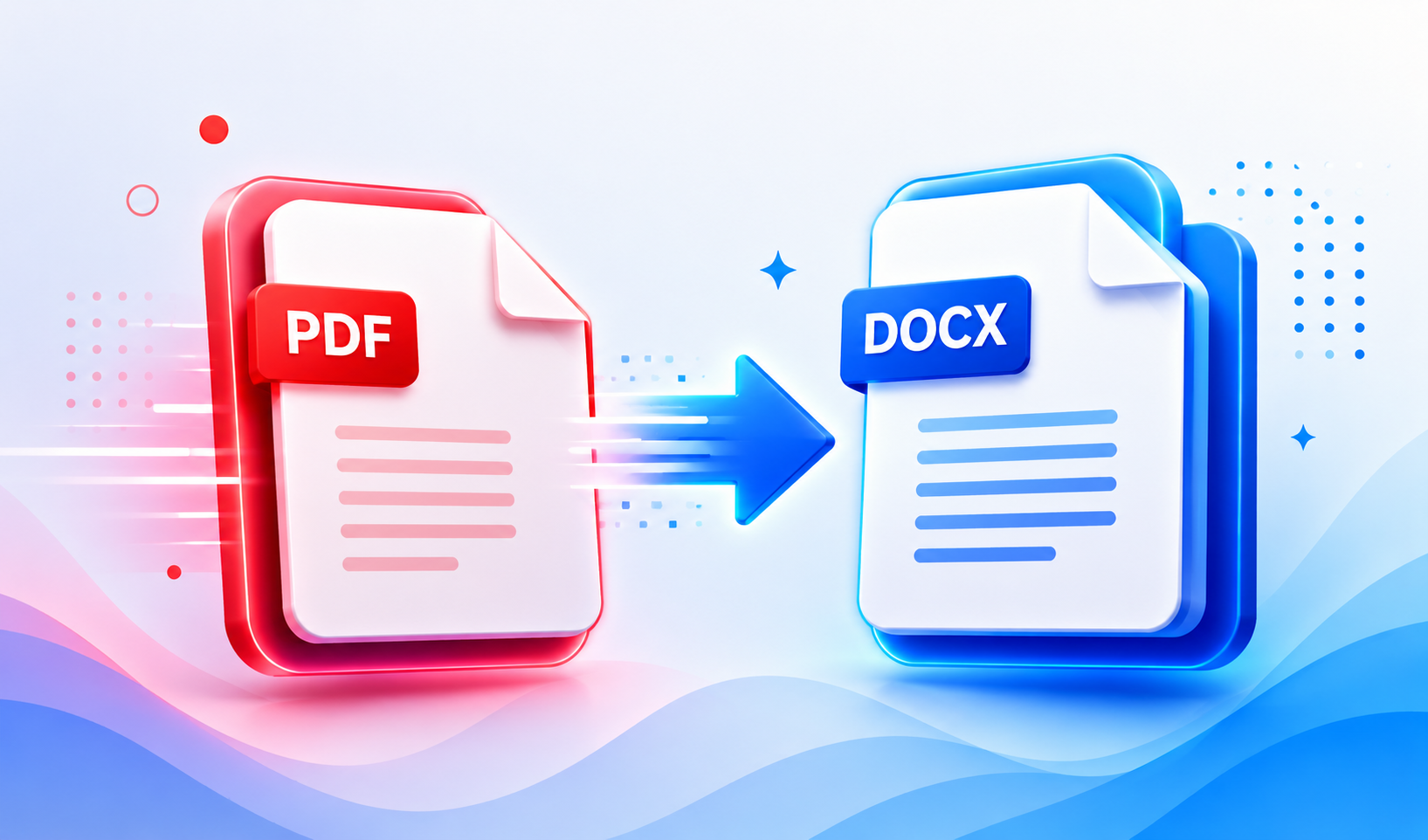
Fortunately, converting a PDF to Word document makes the process simple. In just a few clicks, you can transform a static PDF into a fully editable Microsoft Word file while preserving its original formatting.
In this guide, we'll show you why PDF-to-Word conversion matters, when to use it, and how to achieve the best results.
Why Convert a PDF to Word?
A PDF is designed for viewing, while Word is designed for editing. Converting your PDF to Word gives you complete control over your document.
Some common situations include:
Updating resumes before applying for jobs
Editing contracts or agreements
Making changes to business proposals
Updating invoices or quotations
Revising reports and presentations
Translating documents into another language
Reusing content without typing everything again
Instead of recreating the document manually, conversion saves both time and effort.
Challenges with Editing PDFs
Many people try to edit PDFs directly and quickly discover several limitations:
Text cannot be edited easily.
Images are difficult to replace.
Tables lose alignment.
Formatting often breaks.
Copy-pasting creates messy layouts.
That's why converting the document into Word first is usually the better option.
How to Turn Any PDF into an Editable Word Document
Select the document you want to edit from your device.
Step 3: Choose PDF to Word
Select the PDF to Word conversion option.
Step 4: Convert the File
Start the conversion. Most modern converters complete the process within a few seconds.
Step 5: Edit Your Document
Open the converted DOCX file in Microsoft Word or any compatible word processor.
Now you can edit text, replace images, change fonts, modify tables, and save your changes effortlessly.
Tips for Better Conversion Results
To maintain formatting and achieve professional-looking documents:
Use high-quality PDF files whenever possible.
Avoid blurry scans.
Check tables after conversion.
Review page spacing and fonts.
Save your edited file back to PDF before sharing.
Small adjustments after conversion ensure your document looks polished.
Features to Look for in a PDF to Word Converter
Not all converters offer the same quality. A reliable PDF tool should provide:
Fast conversion
Accurate formatting preservation
Support for scanned PDFs with OCR
High-quality image retention
Offline conversion for privacy
Batch conversion
Password-protected PDF support
These features make editing documents much faster and more efficient.
Who Can Benefit?
PDF to Word conversion is useful for almost everyone.
Students
Edit assignments, lecture notes, and research papers without recreating documents.
Professionals
Update contracts, proposals, invoices, and business reports quickly.
HR Teams
Modify resumes, job descriptions, and employee documents.
Freelancers
Reuse templates and proposals without starting from scratch.
Small Businesses
Keep editable versions of important company documents for future updates.
Why Use a Modern PDF Converter?
Modern PDF tools are designed to do much more than simple conversion. They help you work smarter by combining speed, accuracy, and convenience.
With the right PDF converter, you can:
Convert PDFs without losing formatting
Edit documents in Microsoft Word
Preserve fonts, tables, and images
Save time on repetitive tasks
Work offline for better privacy
Share professional-looking documents instantly
Instead of manually recreating files, you can focus on your work while the converter handles the heavy lifting.
Final Thoughts
PDF files are excellent for sharing information, but Word documents are far more flexible when edits are needed. Converting your PDF into an editable Word document allows you to update content, improve formatting, collaborate with others, and save valuable time.
Whether you're editing a resume, revising a business proposal, updating reports, or making quick document changes, using a reliable PDF to Word converter is the easiest and most efficient solution.
The next time you need to edit a PDF, skip the manual work and convert it into an editable Word document in just a few clicks.
Get the next one in your inbox.
One email, every Friday. Product updates + engineering deep-dives.