How to Merge Multiple Documents into One PDF
Working with multiple documents can quickly become inconvenient. A project may contain several PDFs, scanned pages, Word files, images, forms, certificates, invoices, or other important documents that need to be kept together.
Instead of managing these files individually, you can combine related documents into one PDF. A single, organized PDF is easier to review, share, upload, archive, and manage.
Whether you are preparing employee records, submitting business paperwork, creating a project file, or organizing personal documents, knowing how to merge multiple documents into one PDF can simplify your workflow.
In this guide, we'll explain different types of documents you can combine, how the process works, how to organize the final file, and how tools such as PDFPilot4U can make PDF management easier.
What Does It Mean to Merge Multiple Documents into One PDF?
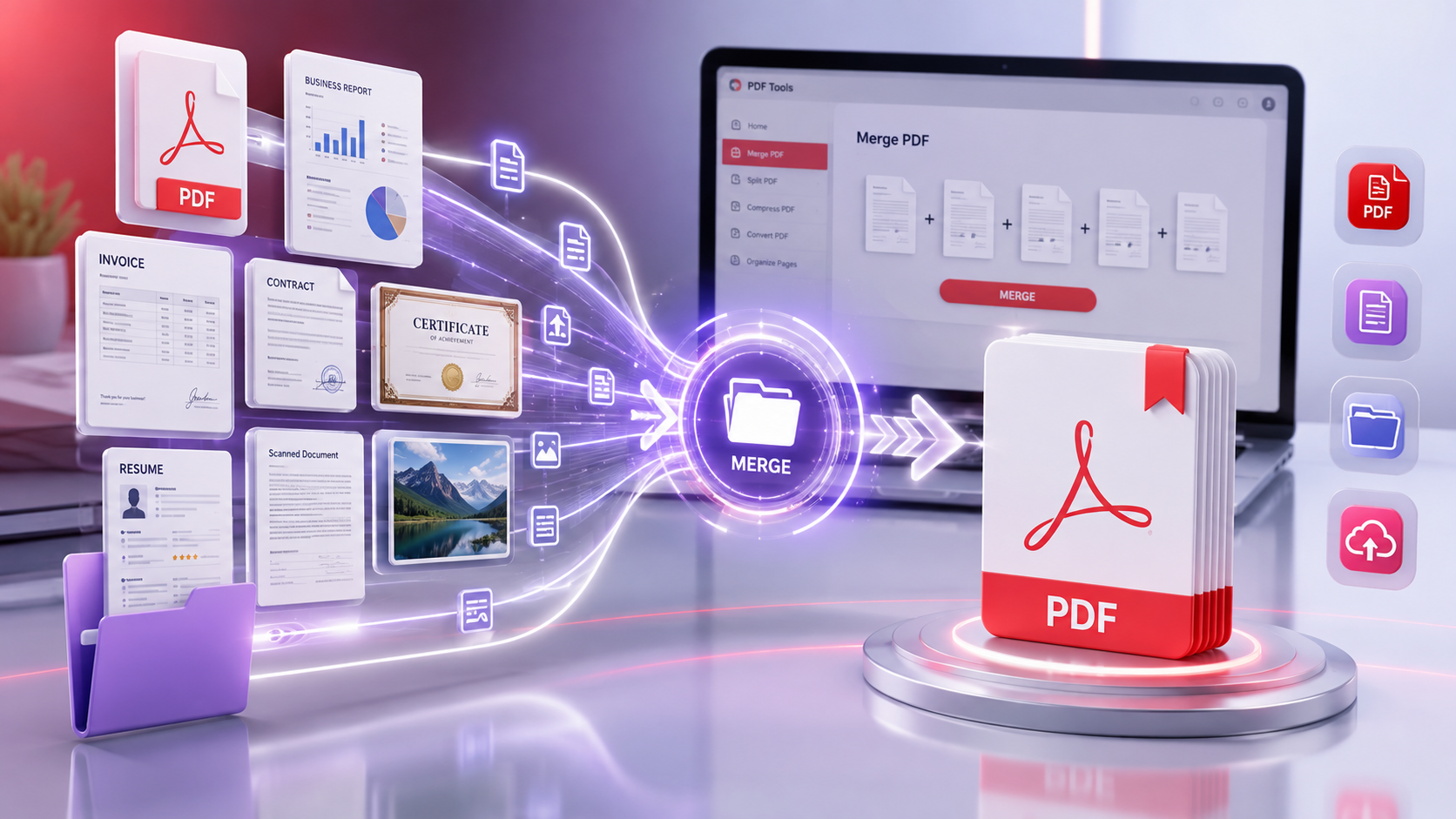
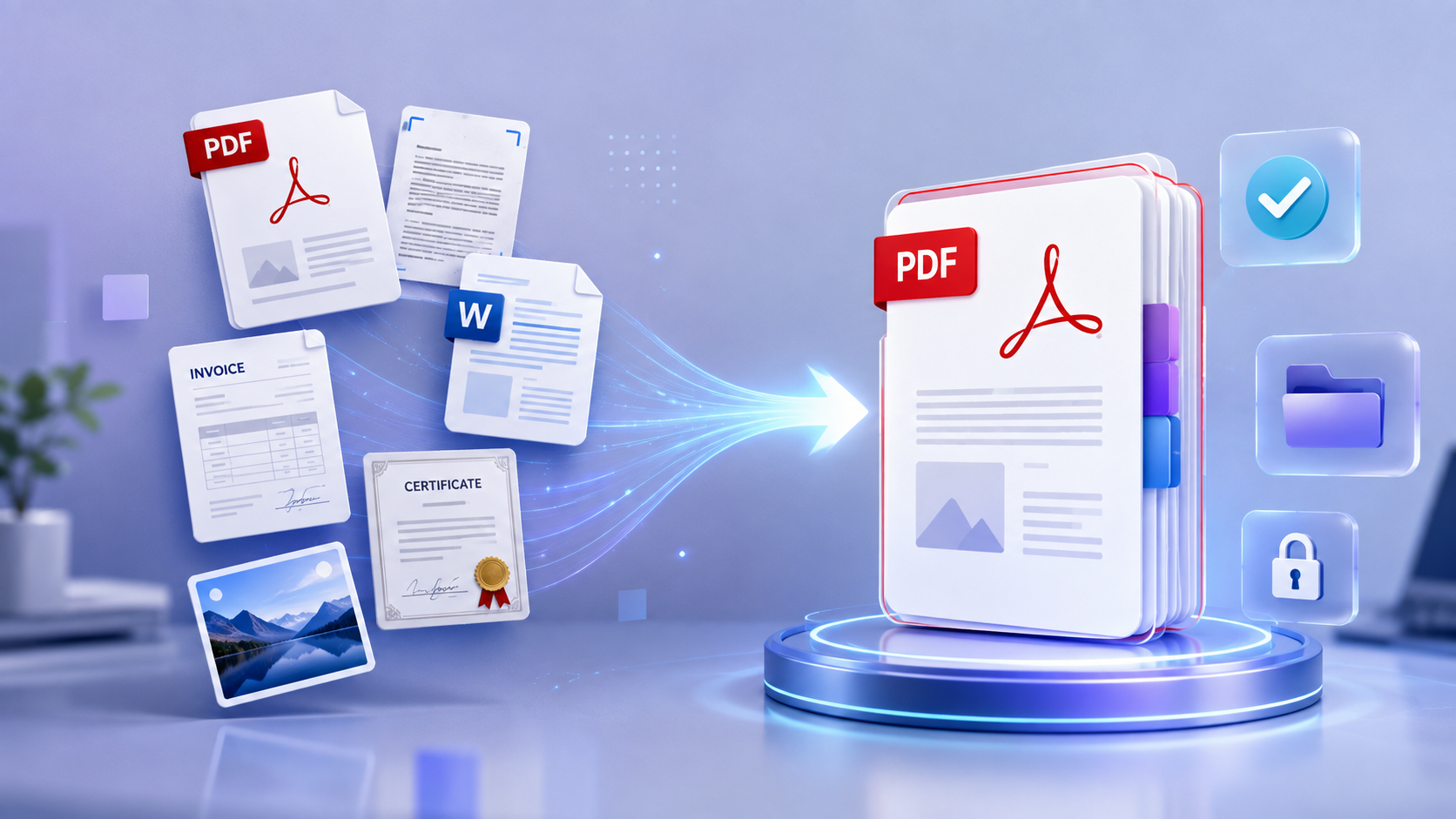
Merging documents means combining multiple files or PDF documents into a single PDF file.
For example, suppose you have these files:
Project proposal
Budget document
Supporting certificate
Company profile
Reference documents
Instead of sending five separate attachments, you can combine them into one PDF.
The final file could be named:
Project_Documentation.pdf
All selected pages will appear together in the chosen order.
This can make document handling much simpler, especially when the recipient needs to review the complete set of information.
Why Combine Multiple Documents into One PDF?
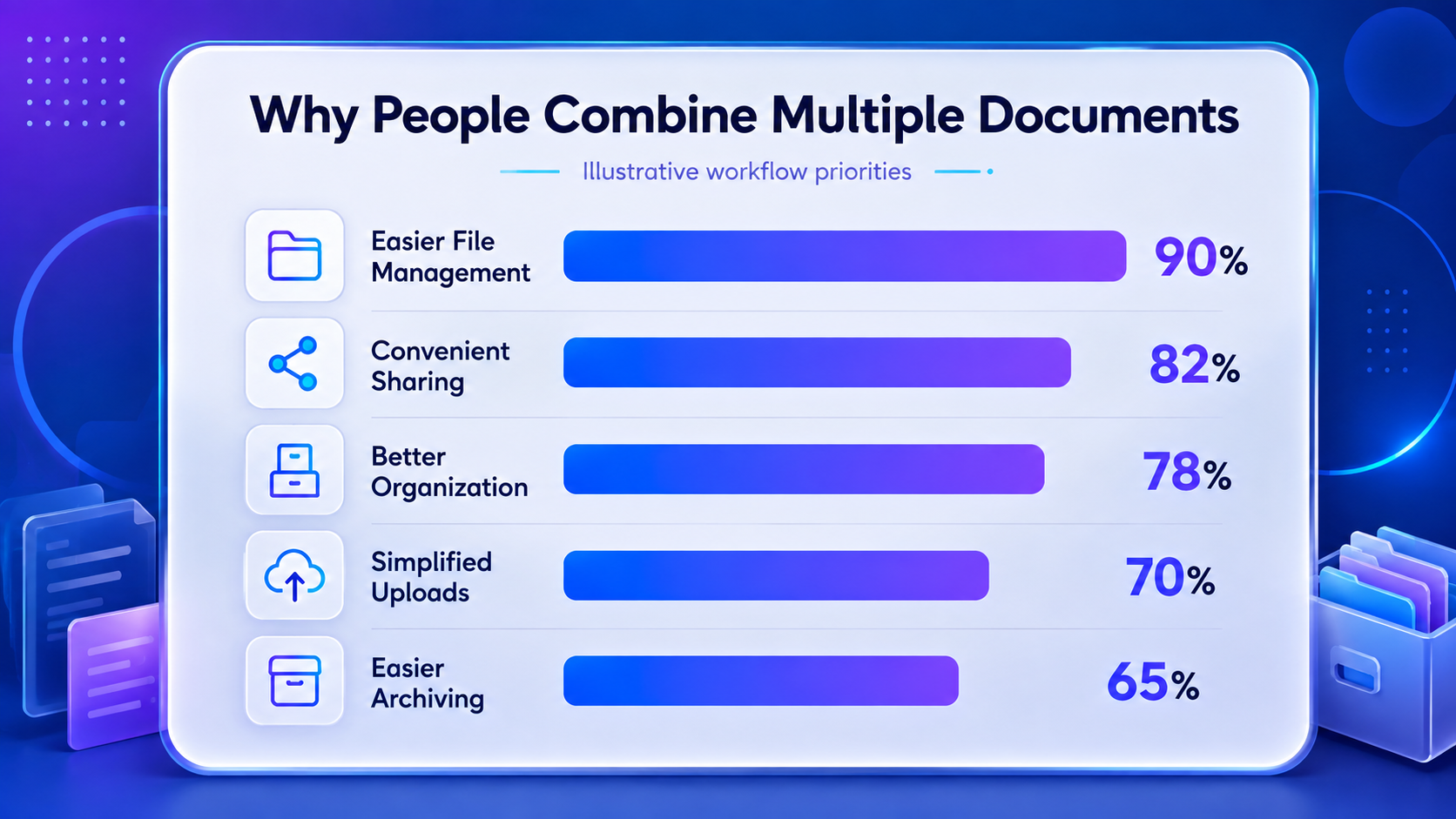
There are several reasons why people and businesses choose to consolidate documents.
1. Easier File Management
Managing one file is often simpler than keeping track of several related documents.
A consolidated PDF can help keep all the necessary information together.
2. Convenient Sharing
Instead of attaching multiple files to an email or uploading them separately, you can share a single PDF.
This can make the process more convenient for both the sender and recipient.
3. Better Organization
Combining documents in a logical order creates a structured digital record.
For example:
Cover Page → Main Document → Supporting Documents → Appendix
This structure can make the final document easier to navigate.
4. Simplified Uploads
Some websites and online portals limit the number of files that can be uploaded.
Combining multiple documents into one PDF can help when a submission requires a single file.
5. Easier Archiving
A single PDF can be useful for storing a complete project, application, employee record, report, or other document set.
It can also make future retrieval easier when files are named and organized consistently.
What Types of Documents Can You Combine?
The documents you can combine depend on the PDF tool and the format of the files.
Common examples include:
| Document Type |
Common Use |
| PDF Files |
Reports, forms, contracts |
| Scanned Documents |
Certificates, applications |
| Business Documents |
Proposals, invoices, reports |
| Employee Documents |
Resumes, letters, certificates |
| Academic Documents |
Mark sheets, certificates |
| Images |
Scanned pages and photographs |
| Supporting Documents |
Attachments and references |
| Forms |
Applications and declarations |
If your documents are available in different formats, you may need to convert them into PDF before combining them.
How to Merge Multiple Documents into One PDF
One of the easiest approaches is to use an online PDF merging tool. With PDFPilot4U, you can use its PDF tools to handle common document-processing tasks without relying on complicated desktop software.
Here is a simple workflow.
Step 1: Collect Your Documents
Start by gathering all the documents you want to include.
For example, if you're creating a business submission, you might have:
- Cover letter
- Proposal
- Company profile
- Pricing document
- Supporting certificates
Keep the files together so you can easily identify which documents belong in the final PDF.
Before uploading anything, remove unnecessary files to avoid accidentally including irrelevant information.
Step 2: Check the File Formats
Review the documents you have collected.
If they are already PDFs, you can generally proceed directly to the merging process.
If some files are images or other formats, convert them to PDF first where necessary.
For example:
JPG/PNG → PDF → Merge with other PDFs
This is particularly useful for scanned paperwork and photographed documents.
Step 3: Decide the Correct Order
Document order is important.
Before merging the files, decide how you want the final PDF to appear.
For a business proposal, the structure could be:
Cover page
Introduction
Proposal
Pricing
Company information
Supporting documents
For an employee record, it could be:
Resume
Offer letter
Identity documentation
Educational certificates
Previous employment documents
A logical sequence makes the finished PDF much easier to read.
Step 4: Open PDFPilot4U
Open PDFPilot4U and access the Merge PDF tool.
The platform provides PDF-related utilities designed to simplify common document workflows.
You can use the merging feature when you need to bring multiple PDF files together into one document.
Step 5: Upload the Files
Upload the PDF files you want to combine.
Before continuing, check:
Are all the required files included?
Is any unnecessary document selected?
Do the files belong to the same project or record?
Are the documents readable?
Are there duplicate files?
Taking a few seconds to review the selection can prevent mistakes later.
Step 6: Arrange the Documents
Once the files are uploaded, arrange them in the required sequence.
For example:
Introduction → Main Report → Data → Supporting Documents
The order you choose will determine how the pages appear in the final PDF.
If the tool allows page or file reordering, use that feature to create the desired structure before merging.
Step 7: Merge the Documents
After checking the file selection and order, start the merging process.
The separate PDF files are combined into one document.
For example:
Before
Report.pdf
Charts.pdf
Appendix.pdf
References.pdf
After
Complete_Report.pdf
The final PDF contains the selected documents in one file.
Step 8: Review the Final PDF
Always review the completed document before sharing or archiving it.
Check for:
Missing pages
Incorrect page order
Duplicate pages
Blank pages
Cut-off content
Unreadable scans
Incorrect documents
This is particularly important for official documents, business submissions, and confidential records.
Can You Combine Scanned Documents into One PDF?
Yes. Scanned paperwork can also be organized into a single PDF.
For example, you may have scanned:
ID documents
Certificates
Receipts
Forms
Signed agreements
If these scans are saved as individual images or PDFs, they can be converted or prepared as PDF pages and then combined into one document. For better results, make sure the scans are:
Poor-quality scans can make the final PDF difficult to read even if the merging process works correctly.
How to Organize the Final PDF
Merging documents is only part of the process. A well-organized PDF is much more useful than a collection of pages in random order.
Use a Logical Sequence
Arrange pages according to how the reader is expected to use the document.
For example:
Cover → Main Content → Supporting Information → Appendix
Use Clear File Names
Avoid names such as:
final123.pdf
Instead, use descriptive names such as:
Annual_Report_2026.pdf
or
Employee_Documents_Rahul_Sharma.pdf
A consistent naming system makes files easier to find later.
Check whether the same document has been uploaded more than once.
Duplicates increase the file size and can create confusion.
Check for Blank Pages
Blank pages can sometimes appear in scanned documents or exported PDFs.
Remove them when they are not required.
What If the Combined PDF Is Too Large?
When you merge several documents, the resulting PDF may become large, especially if it contains high-resolution scans or images.
A large file can be inconvenient for:
In such situations, PDF compression can reduce the file size.
PDFPilot4U also provides PDF compression functionality that can be useful after creating a combined document.
However, always review the compressed file afterward.
Important elements such as:
Text
Signatures
Tables
Stamps
Scanned information
should remain readable.
How to Merge Employee Documents into One PDF
Employee records are a common example of why document merging is useful.
An HR department may have several documents for one employee, including:
Instead of managing these files separately, authorized HR personnel can organize relevant documents into a single employee PDF.
For example:
EmployeeName_EmployeeID_Documents.pdf
A standard structure can make employee records easier to review and retrieve.
However, organizations should avoid automatically combining documents that have different access or retention requirements. Sensitive information should be managed according to applicable privacy and internal security policies.
How to Merge Documents for Business Use
Businesses frequently work with collections of documents.
For example, a company submitting a proposal may need to provide:
Cover letter
Business proposal
Company profile
Financial information
Certifications
Supporting documents
Combining these into one PDF can create a more professional and convenient submission.
A structured business document could follow this order:
Cover Page → Executive Summary → Proposal → Company Profile → Supporting Documents
This makes it easier for the recipient to review the complete submission.
How to Prepare Documents Before Merging
A little preparation can improve the final result.
Rename Files Clearly
Use names that help you identify the documents quickly.
Remove Unnecessary Pages
Don't include pages that aren't relevant to the final document.
Check Orientation
Make sure portrait and landscape pages are displayed correctly.
Review Scans
Make sure scanned pages aren't blurry or cropped.
Decide the Page Order
Create the sequence before starting the merge.
Keep a Backup
If the original documents are important, retain the original files according to your organization's document-management policy.
Common Mistakes When Combining Documents
Even a simple PDF workflow can lead to problems if the files aren't reviewed properly.
Uploading the Wrong Document
Always check the selected files before merging.
This is especially important when working with confidential business, financial, or employee information.
Incorrect Page Order
A technically correct PDF can still be difficult to use if the documents appear in the wrong sequence.
Duplicate Files
Make sure the same document hasn't been added twice.
Poor Scan Quality
A low-quality scan may remain difficult to read after being converted or merged.
Ignoring File Size
A very large PDF may create problems when uploading or sharing.
Forgetting to Review the Final File
Never assume that the final PDF is correct without opening and checking it.
How PDFPilot4U Can Simplify Document Workflows
PDFPilot4U can be useful when you regularly work with PDF files and need several document-management functions in one place.
Instead of using separate tools for every task, you can use a PDF-focused platform for common operations such as:
Merging PDF files
Compressing PDFs
Reordering pages
Adding page numbers
Converting images to PDF
Protecting PDF files
Redacting information
Processing PDF documents
This can be particularly helpful for professionals working with reports, applications, business paperwork, HR records, scanned documents, and other digital files.
A simple workflow could look like this:
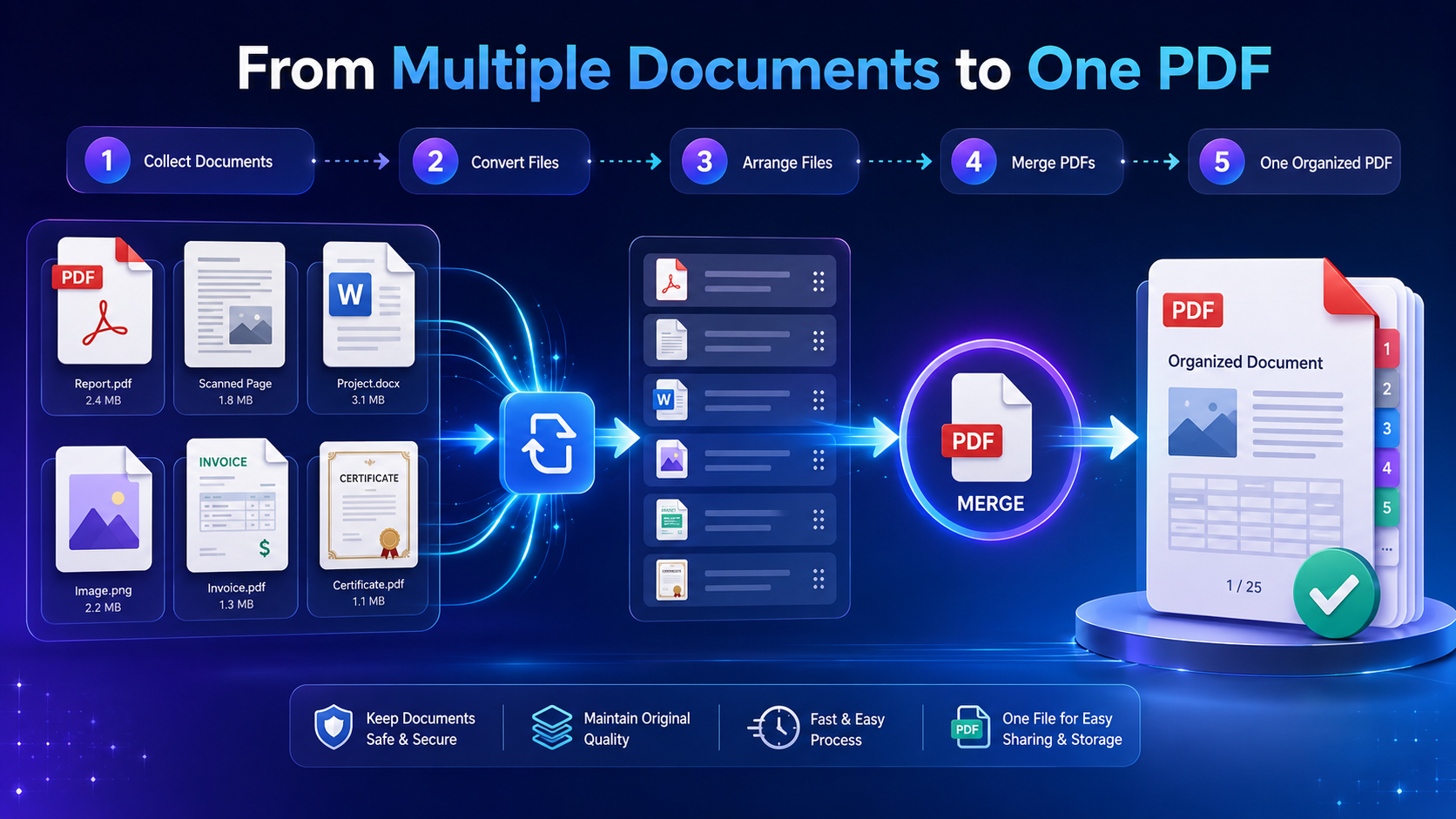
Collect → Convert → Merge → Organize → Review → Compress → Share
The exact steps depend on the type of documents you're working with.
Is It Better to Keep Documents Separate or Merge Them?
There isn't one answer for every situation.
Use One PDF When:
Documents belong to the same project
A submission requires a single file
You are creating an organized report
Supporting documents need to stay together
You are archiving a complete record
Keep Documents Separate When:
Different people need different access levels
Documents have different retention requirements
Individual files are frequently shared separately
The combined file would become unnecessarily large
Sensitive information should not be included with general documents
The best approach depends on how the documents will be used and managed.
Security Considerations When Combining Documents
Some documents may contain sensitive information.
Examples include:
Before combining or sharing these files, consider who actually needs access.
Verify the Documents
Make sure the final PDF contains only the information intended for the recipient.
Use Appropriate Protection
Where required, use available PDF security features such as password protection or access restrictions.
Be Careful With Sharing
Avoid sending confidential documents to unintended recipients.
Consider Redaction
If only part of a document needs to be shared, permanently redact sensitive information rather than simply placing a black box over it.
Follow Internal Policies
Businesses should follow their own data-protection, retention, and document-access policies when handling sensitive records.
Conclusion
Combining related documents into one PDF can make everyday document management simpler. Whether you are organizing employee records, preparing a business proposal, creating a project report, submitting an application, or archiving scanned paperwork, a consolidated PDF can make files easier to manage and share.
The process is straightforward: collect the required documents, prepare them, convert incompatible files when necessary, arrange them in the right order, merge them, and review the final result.
Tools such as PDFPilot4U can make this workflow more convenient by bringing common PDF operations together in one platform.
The most important step is not simply creating one large file. It is creating a well-organized, readable, appropriately secured PDF that contains exactly the information needed. If you're ready to simplify your document workflow, use PDFPilot4U to combine your documents and manage your PDF files more efficiently.
Frequently Asked Questions
How do I merge multiple documents into one PDF?
First, collect the documents you need, convert incompatible files to PDF if necessary, arrange them in the correct order, and use a PDF merging tool such as PDFPilot4U to combine them into one file. Finally, review the completed PDF before sharing it.
Can I combine several PDF files into one?
Yes. Multiple PDF files can be combined into a single PDF using a PDF merging tool.
Can I merge scanned documents?
Yes. Scanned documents can be converted into PDF files and then combined with other PDF documents.
Can images be included in a merged PDF?
Yes. Images such as JPG or PNG files can generally be converted into PDF format first and then included in the final document.
How many documents can I combine?
The practical limit depends on the PDF tool, file sizes, and your device or browser. For large document sets, it's a good idea to check the tool's file-size and upload limitations.
Can I rearrange documents before merging?
Yes, when the PDF merging tool provides a reordering feature. Arranging documents before merging helps create a logical final file.
How can I reduce the size of a merged PDF?
If the resulting file is too large, compress the PDF after merging. Always check the compressed version to ensure that important text and images remain readable.
Should I merge all my documents into one PDF?
Not always. Combining related documents can improve organization, but documents with different access requirements or sensitive information may be better stored separately.
Can HR teams use a merged PDF for employee records?
Yes. HR teams can combine relevant employee documents into an organized PDF when appropriate. However, confidential records should be handled according to the organization's privacy, access-control, and retention policies.
Is merging PDFs the same as compressing PDFs?
No. Merging combines multiple documents into one file, while compression reduces the file size of a PDF. They are two different operations and may be used together.