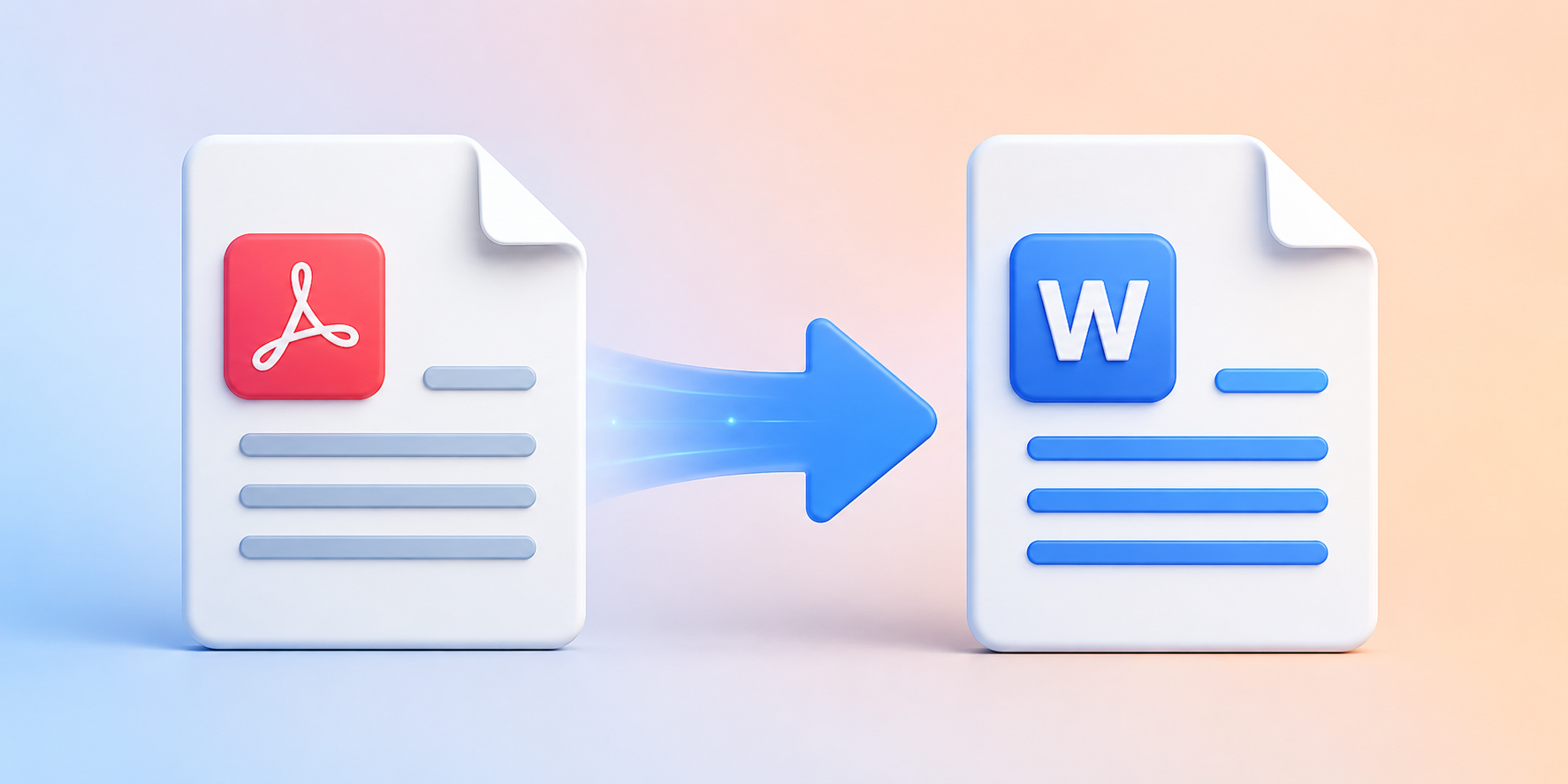
PDFs are perfect for sharing and archiving — but when you need to edit the content, update figures, or repurpose text, you need a Word document. Converting PDF to Word used to mean losing formatting, scrambled tables, and broken layouts. Modern AI-powered converters have changed that completely.
Why Convert PDF to Word?
PDFs are read-only by design. Converting to Word (DOCX format) unlocks full editing: you can update text, revise tables, change formatting, add comments, and collaborate with colleagues using Track Changes. It's an essential step for anyone who receives a PDF and needs to work with its content.
How to Convert PDF to Word Using PDFPilot4U
Visit PDFPilot4U: Go to pdfpilot4u.com and select PDF to Word from the Convert tools, or search for it in the tool bar.
Upload Your PDF: Drag and drop your file, browse your computer, or import from Google Drive or Dropbox.
Start Conversion: Click Convert. PDFPilot4U uses AI-powered layout recognition to preserve tables, columns, headings, and images during conversion.
Download Your DOCX: Your editable Word file is ready in seconds. Open it in Microsoft Word, Google Docs, or any DOCX-compatible editor.
What Makes a Good PDF to Word Converter?
Formatting preservation: The best converters maintain tables, columns, fonts, and spacing — not just raw text.
OCR for scanned PDFs: If your PDF is a scanned image, OCR technology is required to make the text recognisable and editable. PDFPilot4U's OCR achieves 98%+ accuracy.
Batch conversion: For teams processing multiple files, batch conversion (available on Pro and Business plans) saves significant time.
Security: Your documents often contain sensitive information. Choose a converter that encrypts files and deletes them after processing — which PDFPilot4U does automatically within 24 hours.
Common PDF to Word Conversion Problems (and How to Avoid Them)
Garbled text: Usually caused by embedded non-standard fonts. PDFPilot4U's AI font-matching engine maps embedded fonts to their closest Word equivalents.
Broken tables: Complex or merged-cell tables can lose structure in lower-quality converters. PDFPilot4U's layout analysis specifically preserves table structure.
Missing images: Some converters strip embedded images. PDFPilot4U retains all images in their original positions within the Word document.
Scanned PDFs producing blank Word files: This happens when no OCR is applied. PDFPilot4U automatically detects scanned pages and applies OCR before conversion.
Frequently Asked Questions
Is PDF to Word conversion free on PDFPilot4U?
Yes. You can convert PDFs to Word for free without creating an account. Free users receive a set number of conversions per day. Pro users get unlimited conversions with batch support.
Will my formatting be preserved after conversion?
In most cases, yes. PDFPilot4U uses AI layout analysis to preserve tables, columns, headings, and images. Complex multi-column layouts may require minor manual adjustments after conversion.
Can I convert a scanned PDF to an editable Word document?
Yes. PDFPilot4U automatically detects scanned pages and applies OCR to make the text recognisable and editable. Accuracy is highest for clearly scanned, well-lit documents.
What is the maximum file size for conversion?
PDFPilot4U handles files up to several hundred pages. For very large documents, Pro and Business plans offer higher limits and batch processing.
Is my PDF safe during conversion?
Yes. All files are encrypted in transit and at rest. PDFPilot4U deletes your files automatically after 24 hours and never uses your documents for AI training.