Learn how to compress a PDF and reduce file size without losing quality — free, online, in seconds. Works on any PDF, including scanned documents.
A large PDF causes real problems: email attachments bounce, upload limits block submissions, slow load times frustrate readers, and cloud storage fills up quickly. But reducing PDF file size doesn't have to mean sacrificing the clarity your document needs. Here's how to compress any PDF while keeping it looking professional.
What Happens When You Compress a PDF?
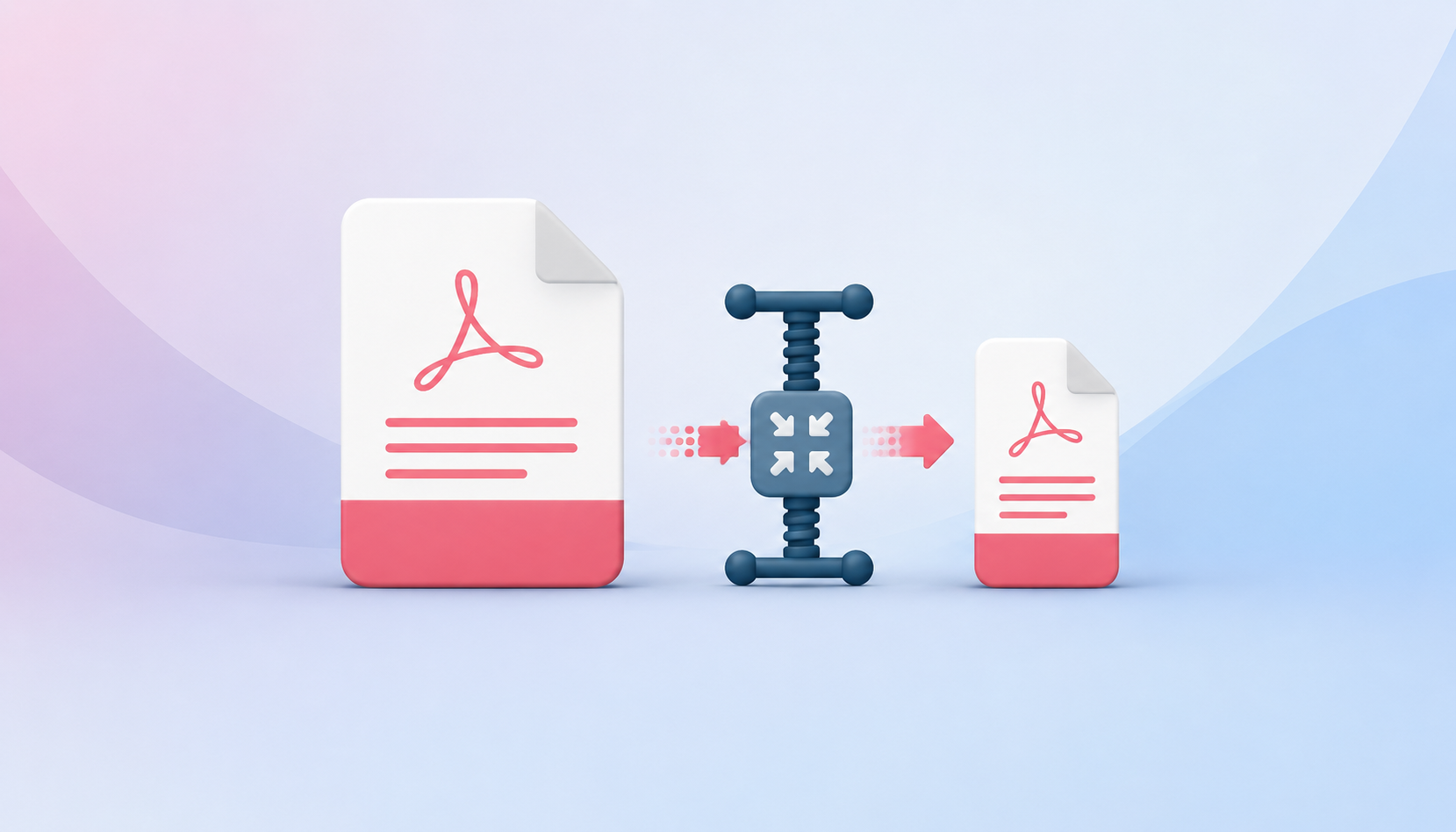
PDF compression works by reducing the size of the resources inside the file primarily images, fonts, and embedded objects. A quality PDF compressor distinguishes between elements that can be reduced without visible impact (background images, low-priority metadata, duplicate resource streams) and those that shouldn't be touched (primary text, vector graphics, form fields). The result is a smaller file that looks identical to the original at normal viewing sizes.
How to Compress a PDF with PDFPilot4U
Visit PDFPilot4U: Go to pdfpilot4u.com and select Compress PDF or Optimize from the All Tools menu.
Upload Your PDF: Drag and drop your file, browse your computer, or import from cloud storage. No account required.
Choose Compression Level: Select from multiple compression options: light (minimal size reduction, maximum quality), standard (balanced — recommended for most use cases), or aggressive (maximum size reduction, suitable for archiving or web upload where file size is critical).
Compress: Click Compress. PDFPilot4U processes the file in seconds, displaying the original and new file sizes and the percentage reduction achieved.
Download: Download your compressed PDF immediately. The original file is unaffected.
How Much Can You Reduce a PDF File Size?
Reduction rates vary based on the original file's content. Typical results with PDFPilot4U:
5. Tips for Maximum PDF Compression Without Quality Loss
1. Use the right compression level for your use case - "Screen" quality (72 DPI images) is sufficient for web use or internal references. "Print" quality (300 DPI) is needed for professional printing.
2. Remove unnecessary pages before compressing - Use PDFPilot4U's Remove Pages tool to delete blank pages, cover sheets you don't need, or appendices before compressing the core document.
3. Flatten forms before compressing - Interactive form fields add overhead. If the form has been filled and doesn't need to be edited further, flatten it first using PDFPilot4U's Flatten PDF tool, then compress.
4. Convert colour images to grayscale for print-only documents - Colour image data is significantly larger than grayscale. If your document doesn't require colour, use PDFPilot4U's Grayscale tool before compressing.
5. Use batch compression for multiple files - Pro and Business plan users can compress multiple PDFs simultaneously ideal for archiving large document repositories.
Frequently Asked Questions
Does compressing a PDF reduce its quality?
With PDFPilot4U's standard compression setting, quality loss is imperceptible at normal screen viewing. Aggressive compression may slightly reduce image sharpness at high magnification. You can preview and adjust the compression level before downloading.
Can I compress a PDF to a specific file size (e.g., under 1MB)?
PDFPilot4U's compression tools will reduce file size as much as possible based on the selected compression level. If a specific target size is required, try aggressive compression first. If the document is very long, splitting into sections and compressing each may be necessary.
Does PDF compression affect text quality?
No. PDF compression targets image data, not text or vector graphics. Text remains perfectly sharp at all zoom levels after compression.
Can I compress a password-protected PDF?
You will need to unlock the PDF first before compressing it. Use PDFPilot4U's Unlock PDF tool to remove the password (if you have the password), then compress the unlocked file.
Is PDF compression free on PDFPilot4U?
Yes. Free users can compress PDFs without creating an account. Pro users get unlimited compression, larger file support, and batch processing for high-volume workflows.
Get the next one in your inbox.
One email, every Friday. Product updates + engineering deep-dives.